
Import a Bitbucket repository to Cube Cloud
This guide walks you through setting up Cube Cloud, importing a Bitbucket repository with an existing Cube project via SSH, and connecting to your database.
Navigate to cubecloud.dev, and create a new Cube Cloud account.
Click . This is the first step in the deployment creation. Give it a name and select the cloud provider and region of your choice.
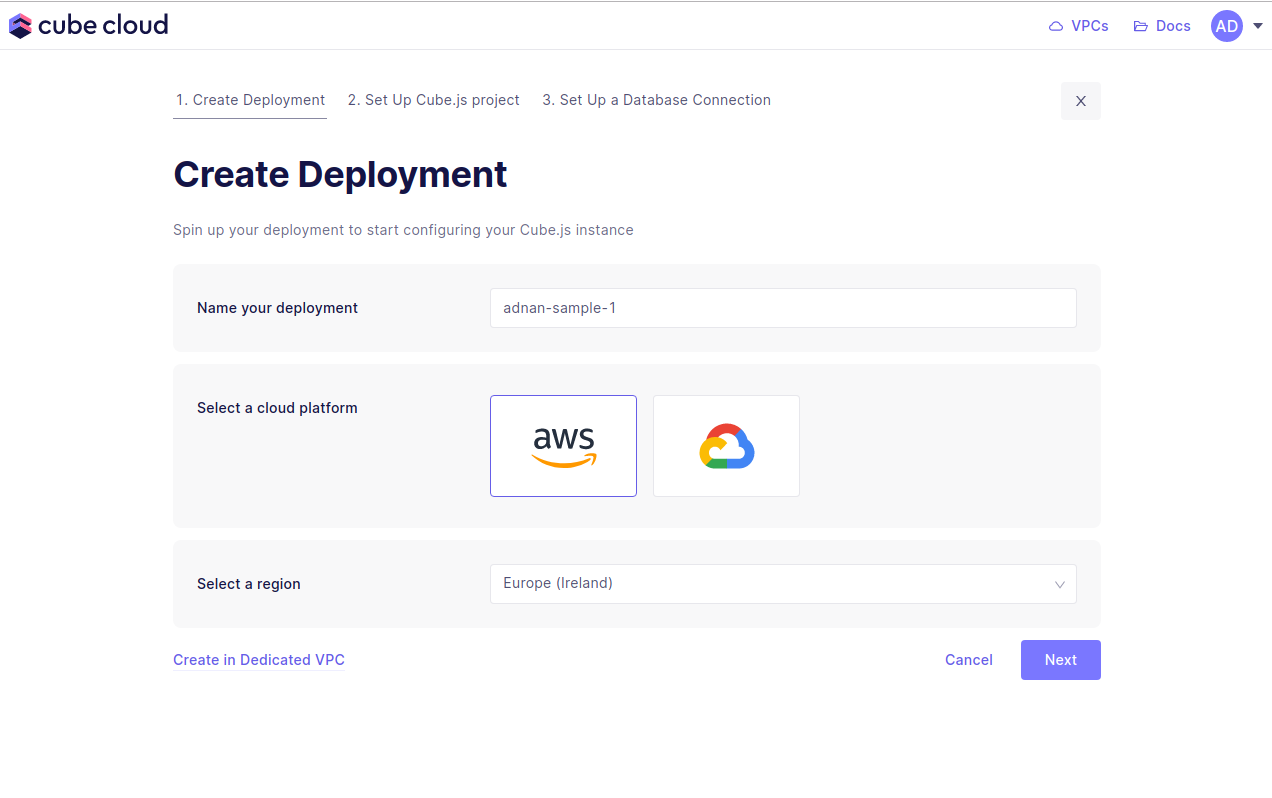
Microsoft Azure is available in Cube Cloud on Premium tier. Contact us for details.
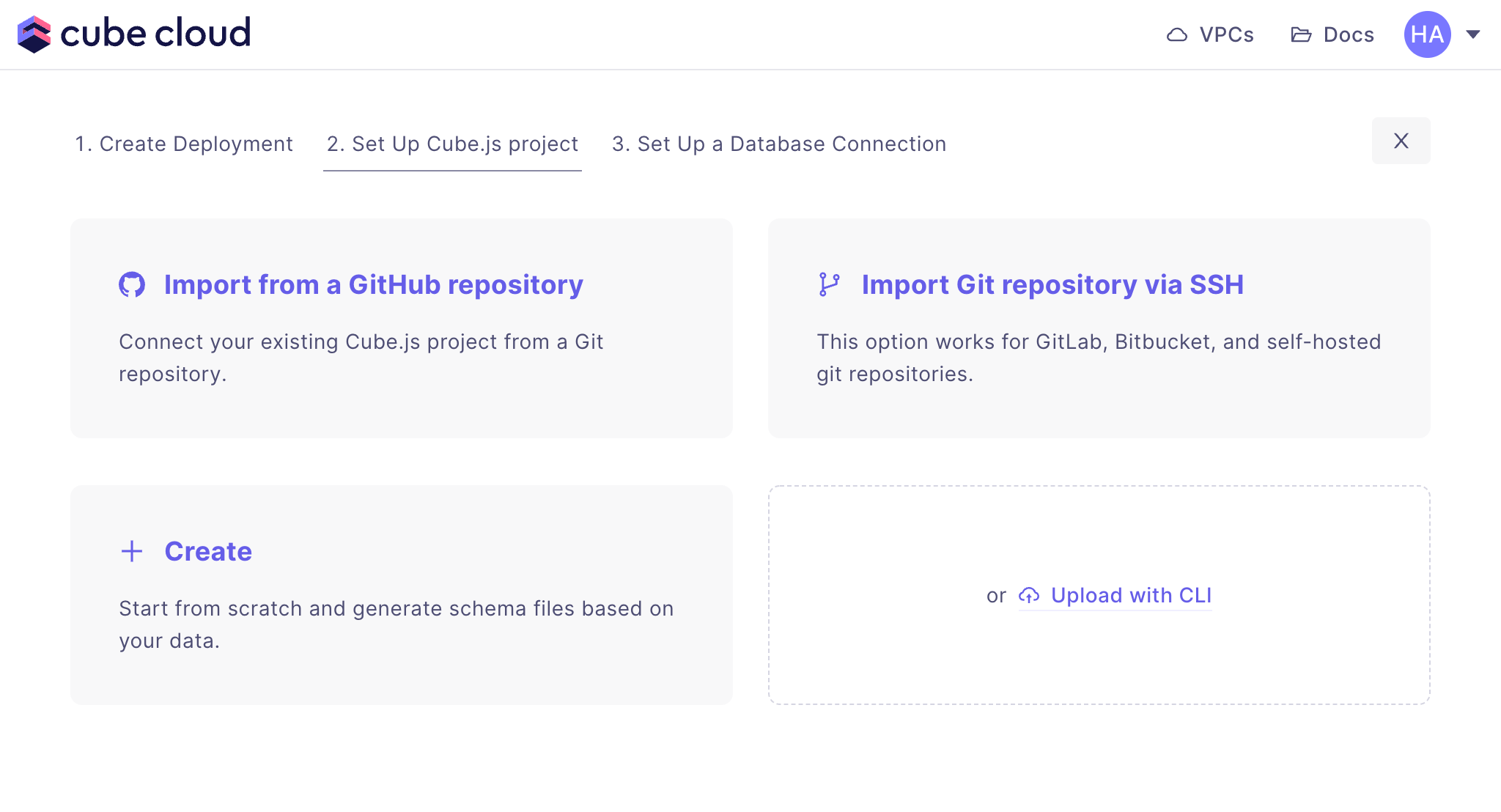
Next up, the second step in creating a Cube App from scratch in Cube Cloud is to click .
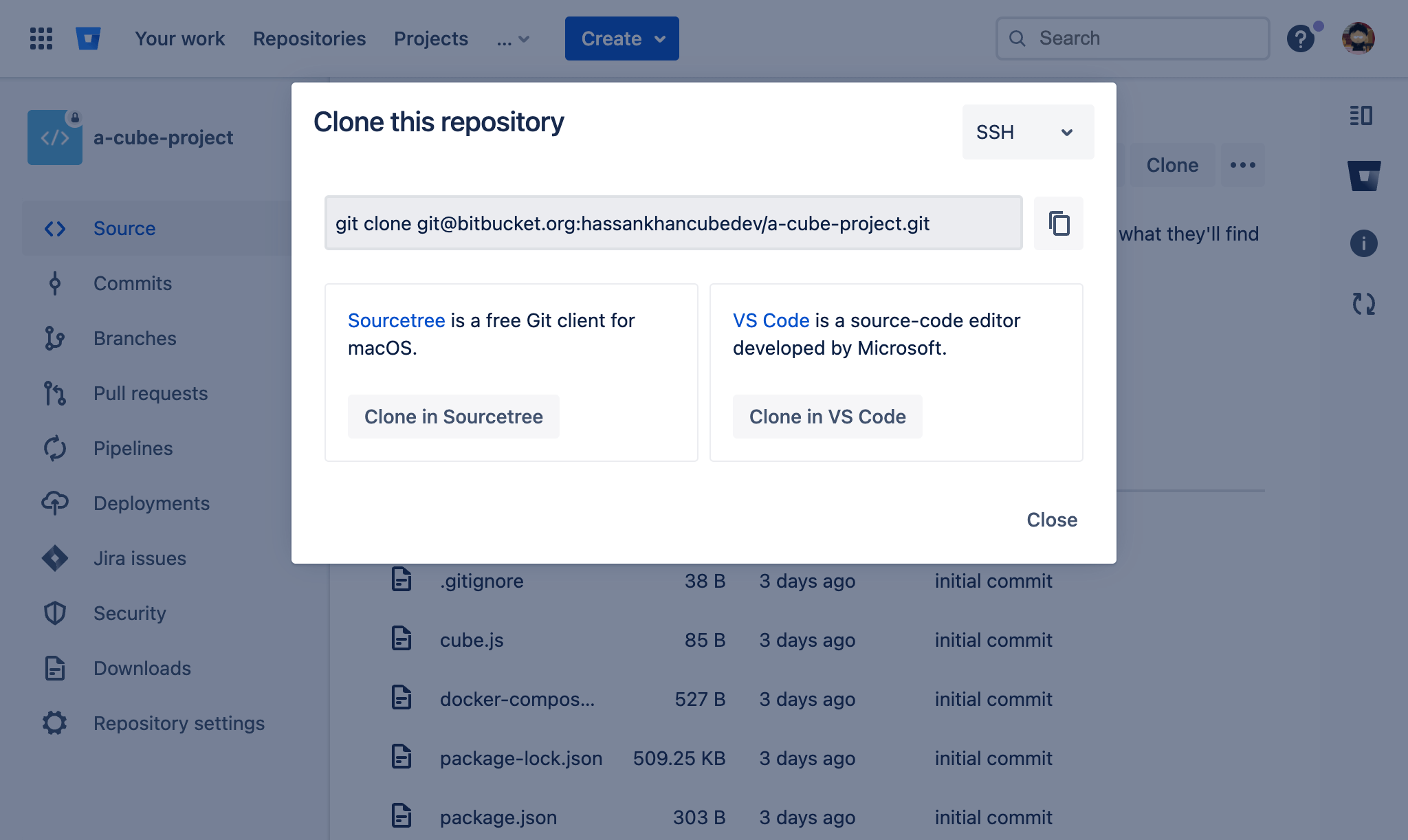
Now go to your Bitbucket repository and on the dialog, switch to and copy the URL:
Back in Cube Cloud, paste the URL and click :
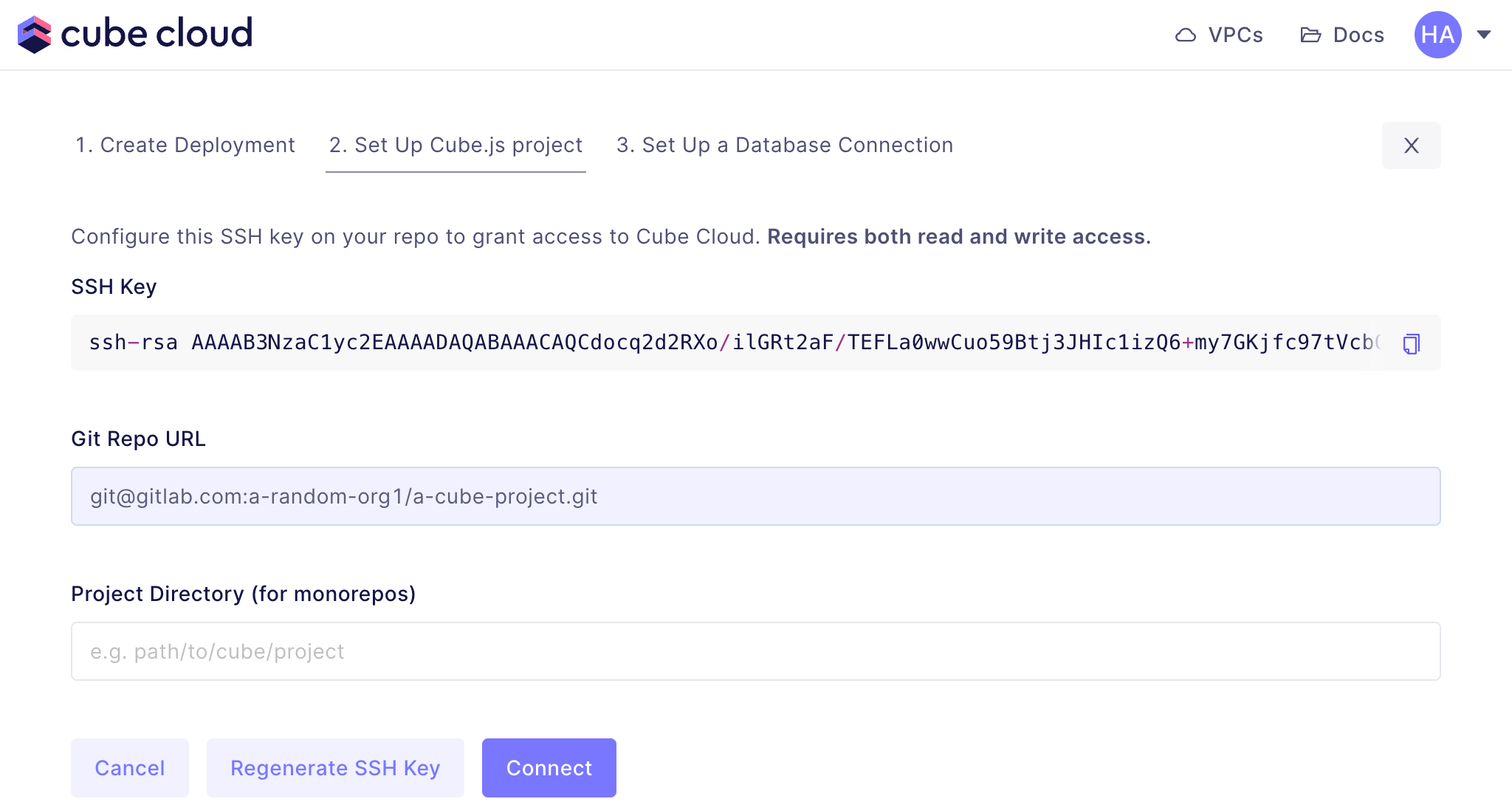
Now copy the SSH key and go back to Bitbucket and into the repository's
settings. Click from the navigation, then click
button. Give the key a label (Cube Cloud, for
example) and paste the SSH key in the relevant field:
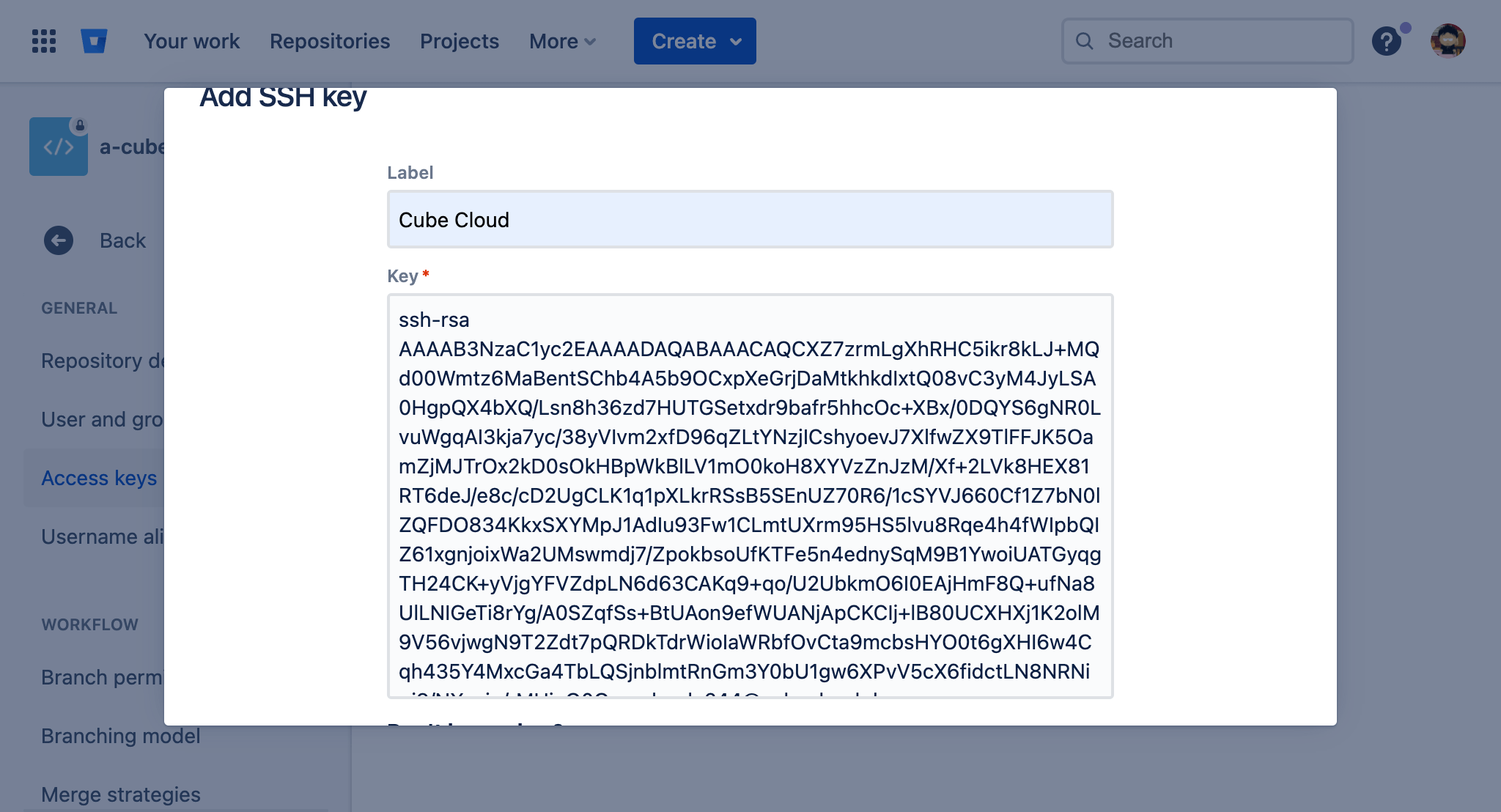
Click to save, then go back to Cube Cloud and click . After a connection is successfully established, you should see the next screen:
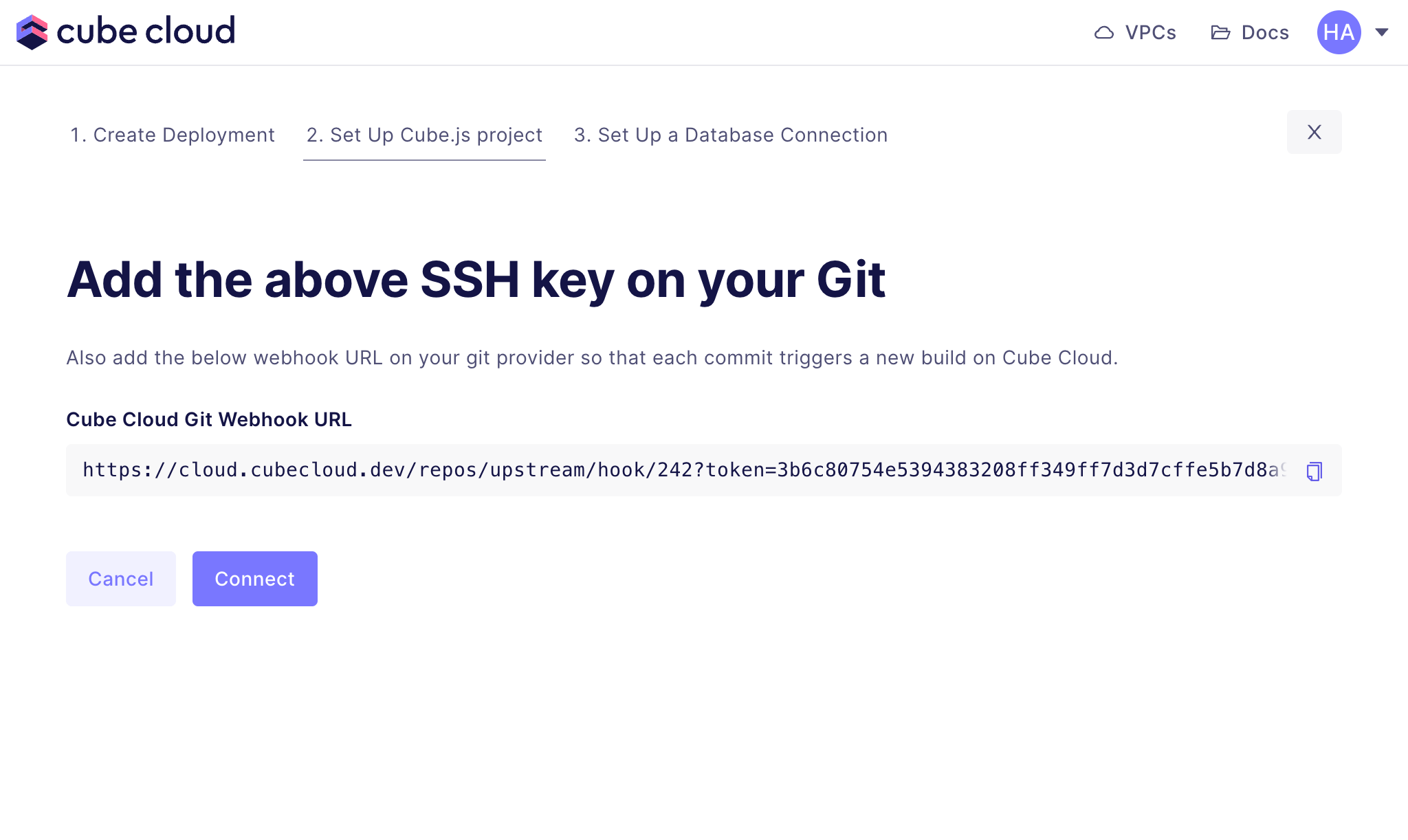
Copy the , go to your Bitbucket
repository's settings, and click from the navigation.
Click , then add a title (Cube Cloud, for example).
Paste the URL into the correct field, ensure the trigger is checked and click .
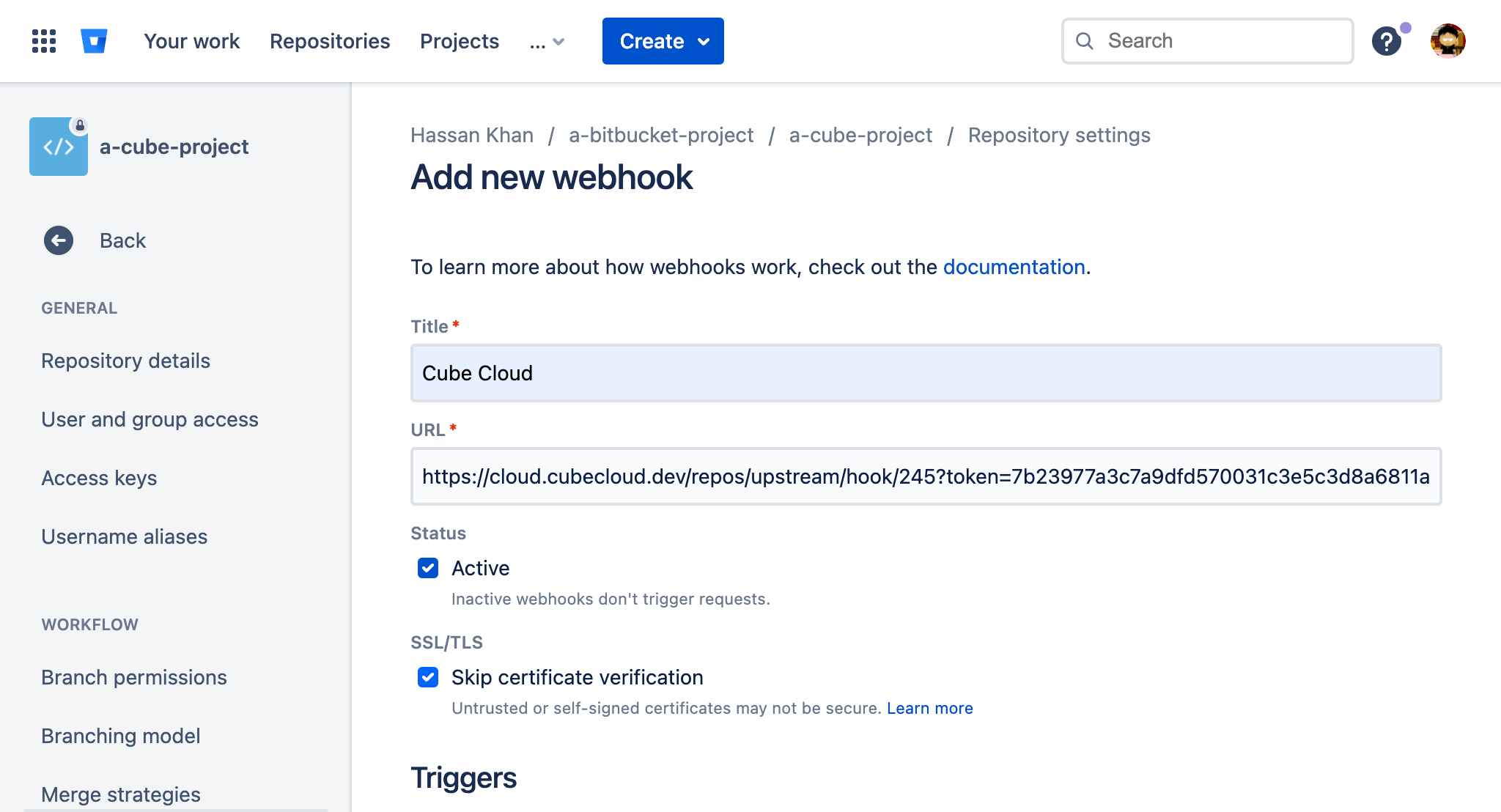
Back in Cube Cloud, click to test the webhook.
Enter your credentials to connect to your database. Check the connecting to databases guide for more details.
Want to use a sample database instead? We also have a sample database where you can try out Cube Cloud:
| Field | Value |
|---|---|
| Host | demo-db.cube.dev |
| Port | 5432 |
| Database | ecom |
| Username | cube |
| Password | 12345 |
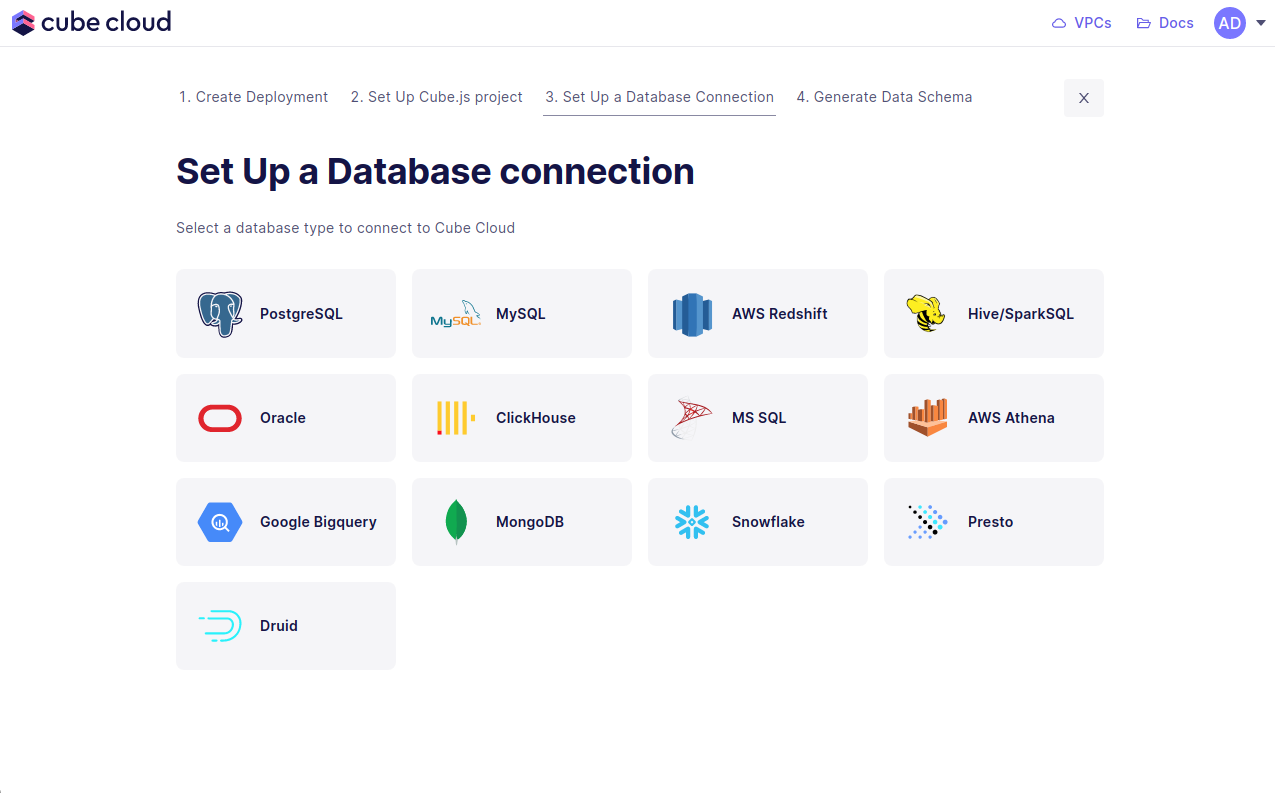
In the UI it'll look exactly like the image below.
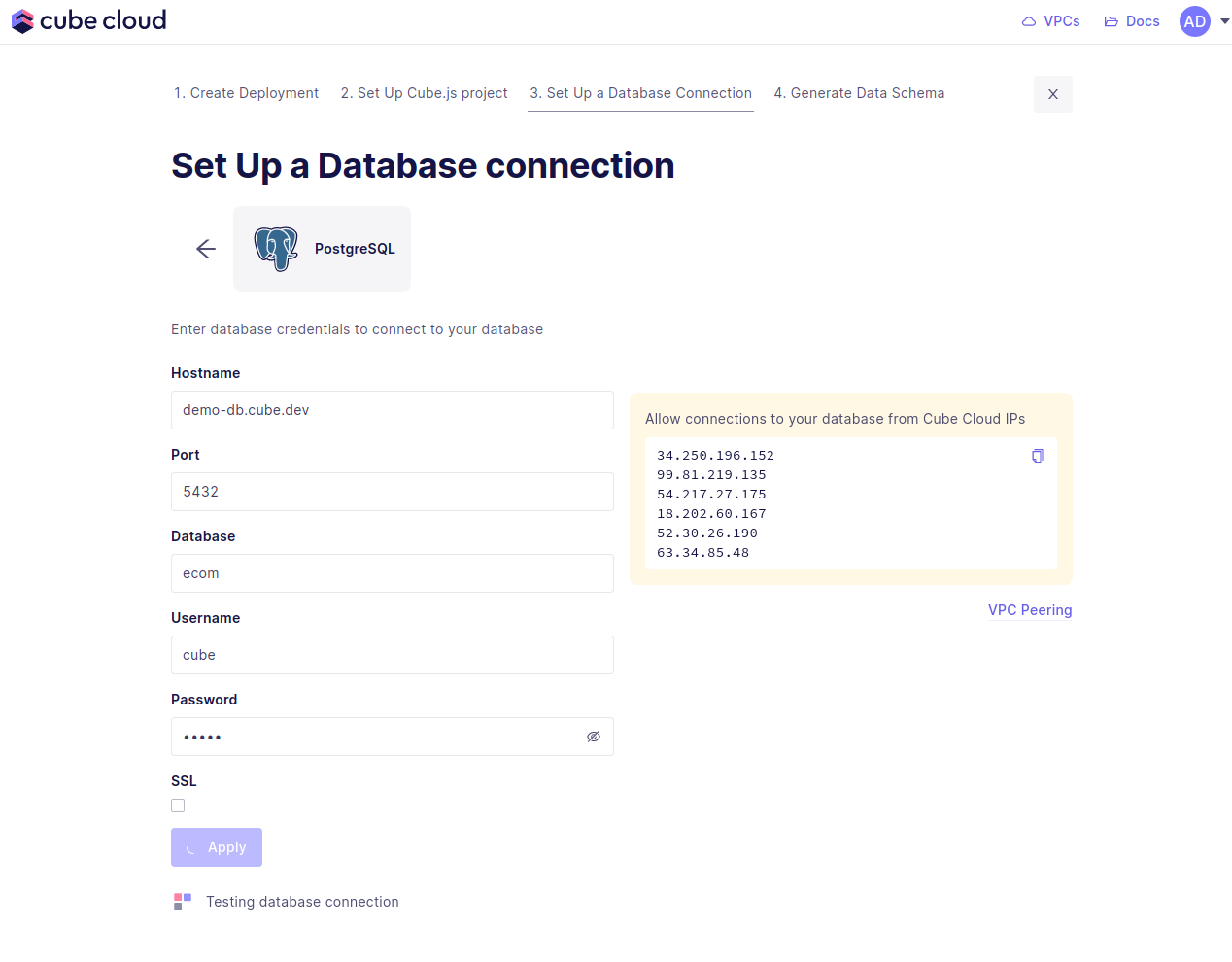
If you run into issues here, make sure to allow the Cube Cloud IPs to access your database. This means you need to enable these IPs in your firewall. If you are using AWS, this would mean adding a security group with allowed IPs.
Step five in this case consists of generating data models. Start by selecting the database tables to generate the data models from, then hit .
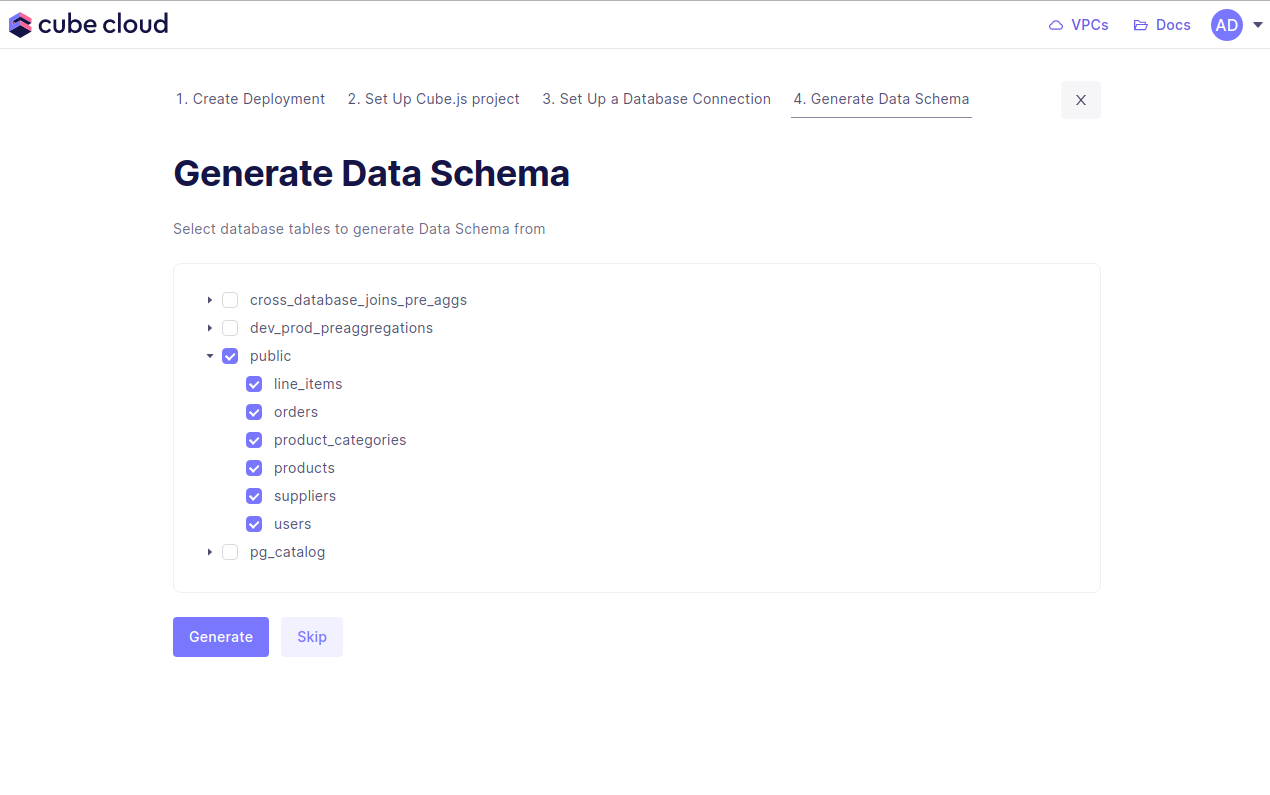
Cube Cloud will generate the data models and spin up your Cube deployment. With this, you're done. You've created a Cube deployment, configured a database connection, and generated data models!
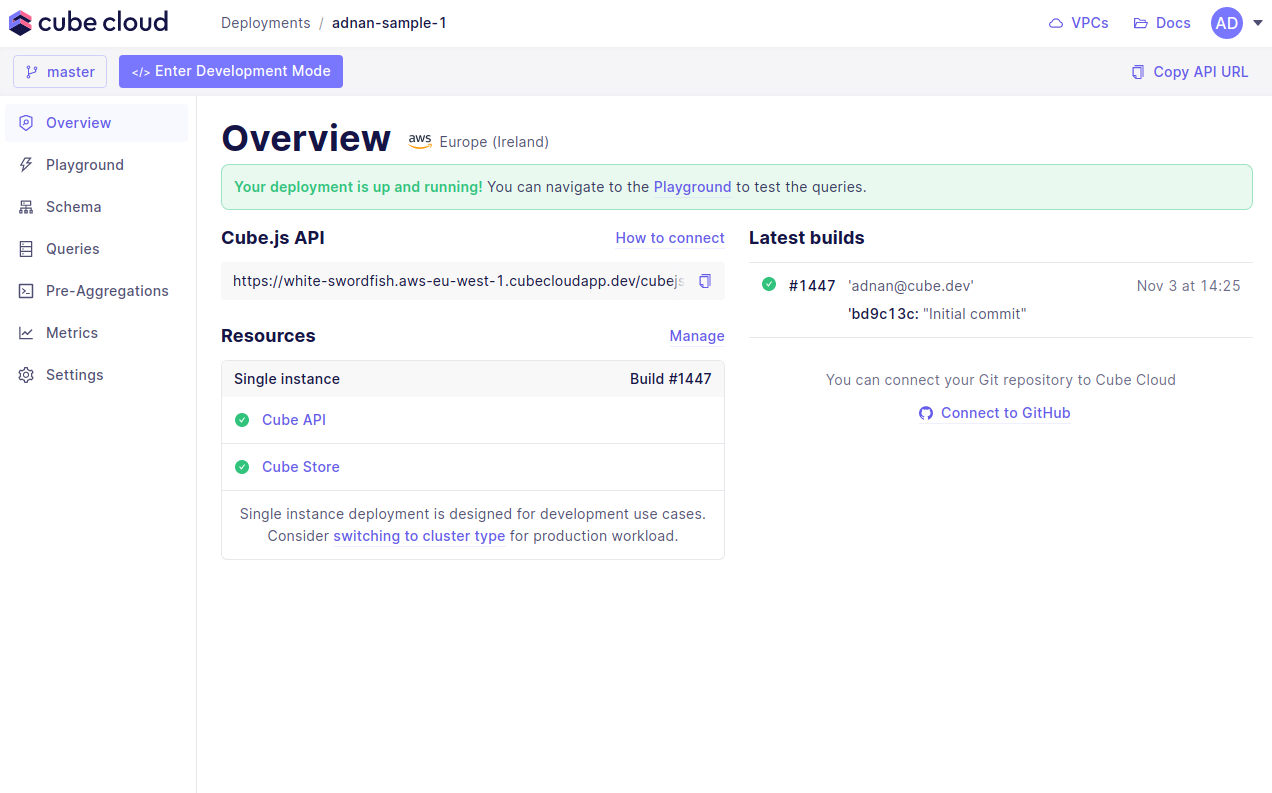
You're ready for the last step, running queries in the Playground.
Now you can navigate to Playground to try out your queries or connect your application to the Cube Cloud API.
Did you find this page useful?
